Overview
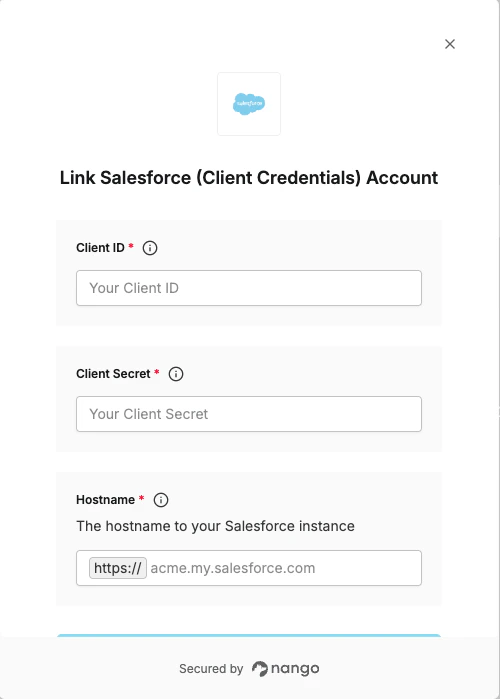
To authenticate with Salesforce (Client Credentials), you will need:- Client ID – The Consumer Key from your Salesforce External Client App.
- Client Secret – The Consumer Secret from your Salesforce External Client App.
- Hostname – Your Salesforce instance hostname (e.g.
acme.my.salesforce.com).
Prerequisites
- A Salesforce account with administrative privileges to create External Client Apps.
Instructions
Step 1: Create an External Client App
- Log in to Salesforce and go to Setup.
- In the Quick Find box, enter App Manager, then select App Manager.
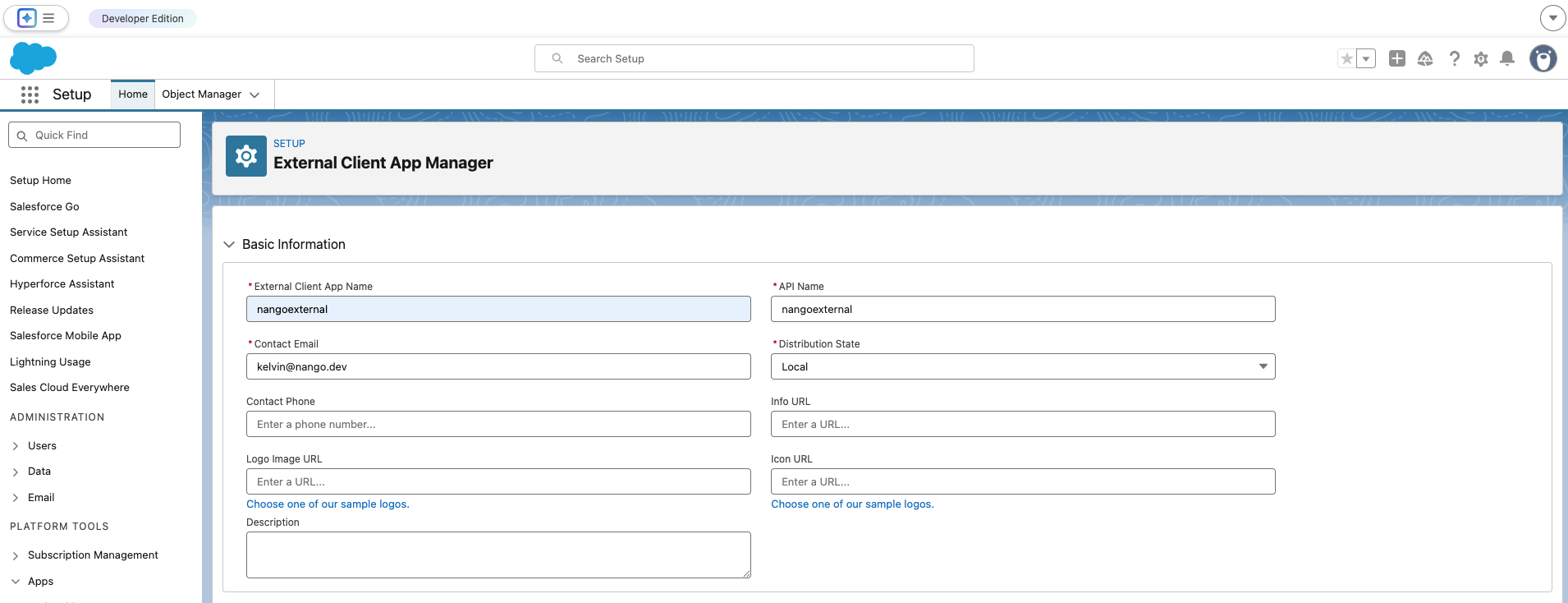
- Click New External Client App.
- Fill in the required basic information (Name, API Name, Contact Email).
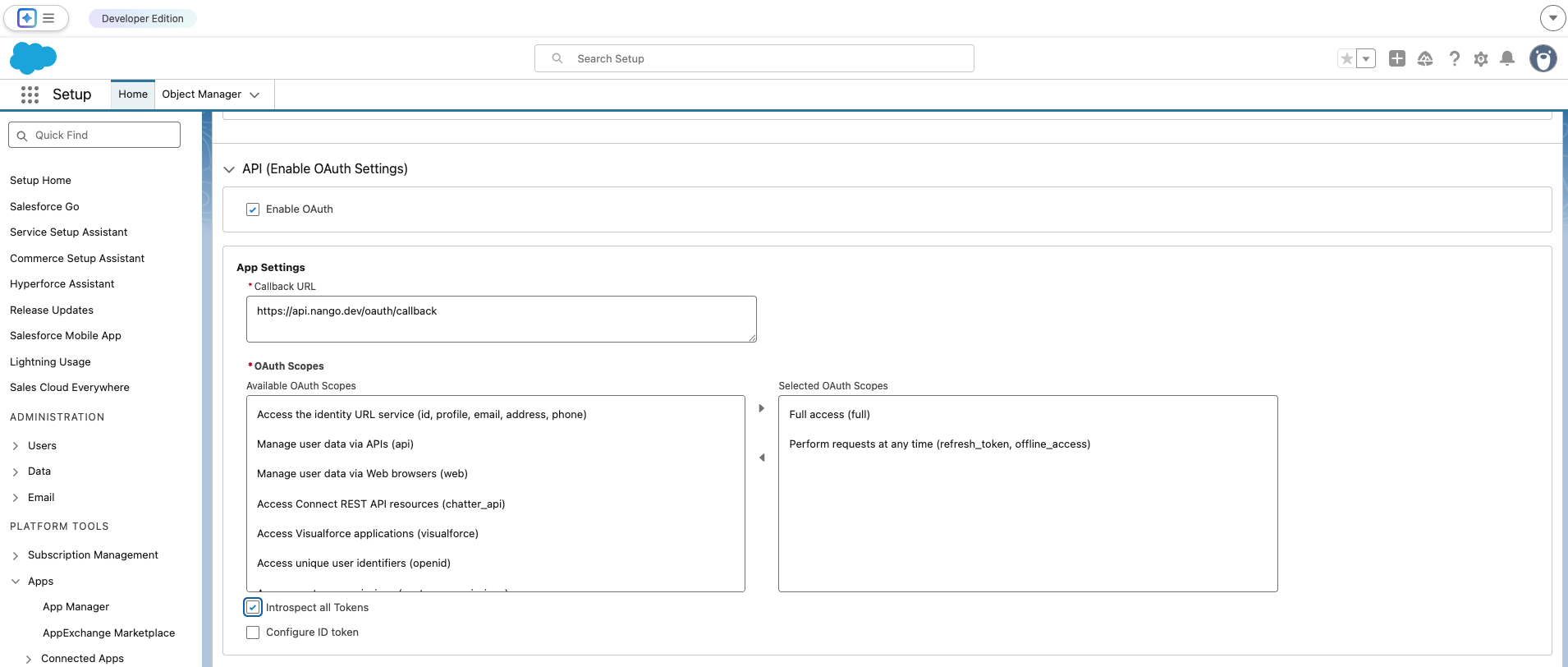
- Check Enable OAuth Settings.
- For Callback URL, you can enter
https://api.nango.dev/oauth/callback. - Under Selected OAuth Scopes, add at least
Access and manage your data (api).
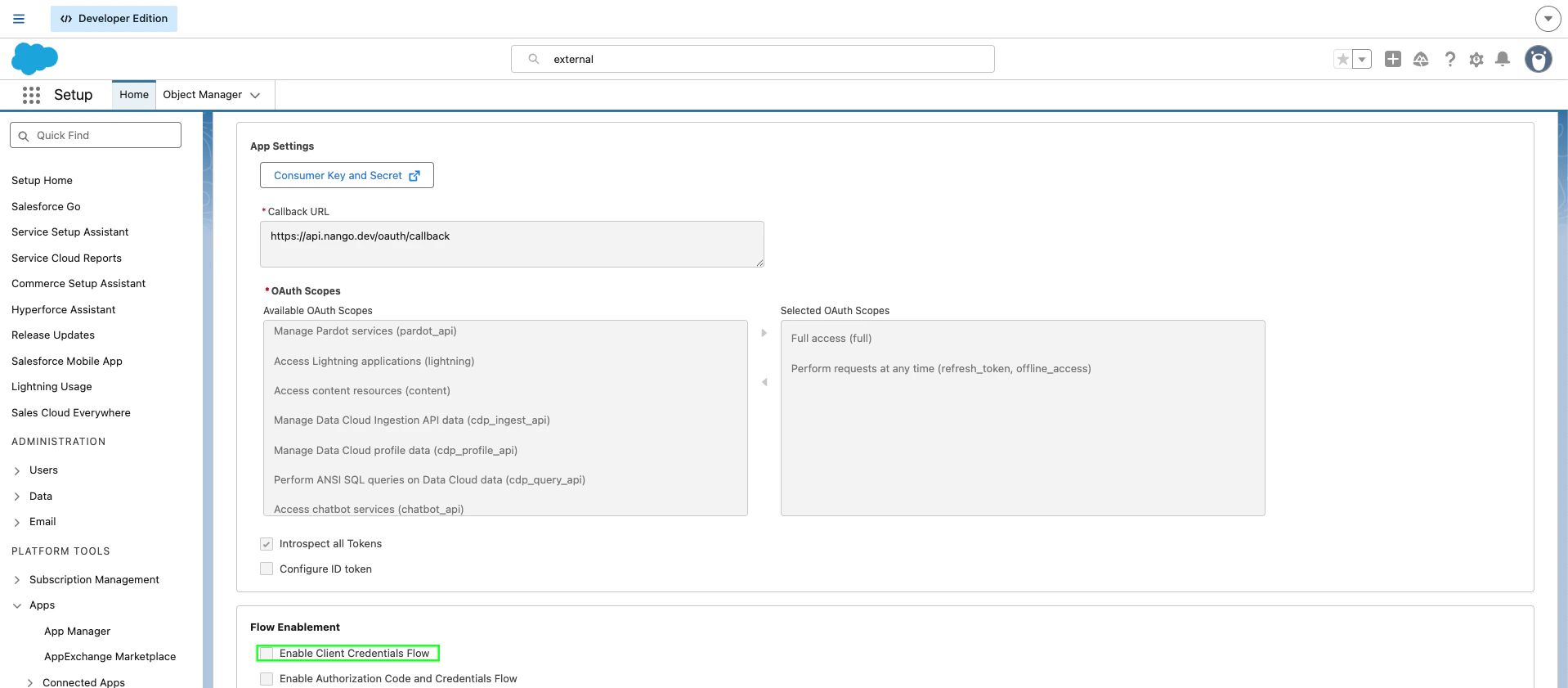
- Enable the Client Credentials flow:
- In OAuth Settings: Under Flow Enablement, check Enable Client Credentials Flow.
- Click Save.
Step 2: Assign an Execution User
For External Client Apps using the Client Credentials flow, Salesforce requires you to specify an execution user:- In App Manager, locate your app, click the dropdown arrow next to it, and select Edit Policies.
- Navigate to the OAuth Policies section.
- Under OAuth Flows and External Client App Enhancements:
- Enable Client Credentials Flow.
- In the Run As (Username) field, enter the username of a Salesforce user who has the necessary permissions required by the app.
- Click App Policies, select the profiles or permission sets that can use this app, then click Save.
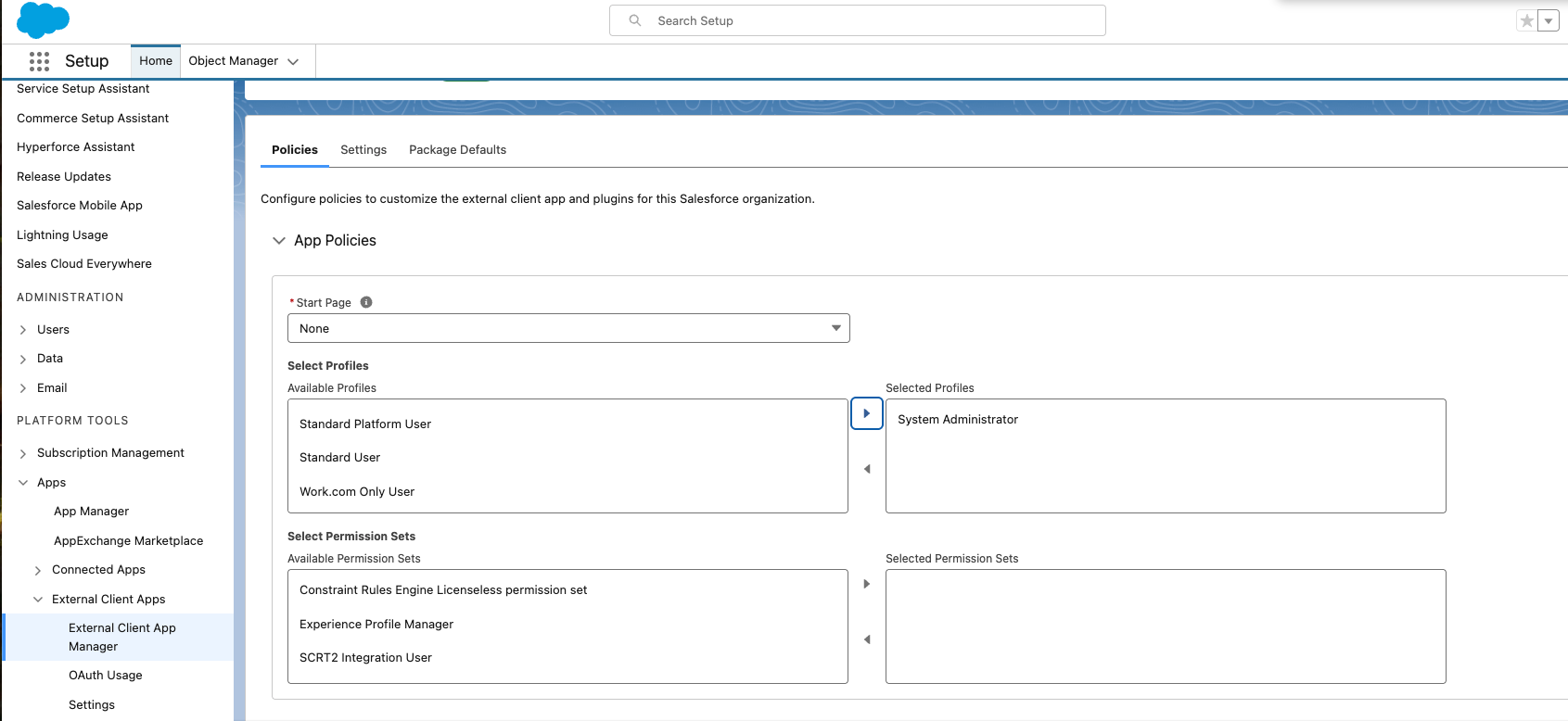
Step 3: Obtain Client ID and Client Secret
- In the App Manager, find your app and go to the Settings tab.
- Click Consumer Key and Secret to view your credentials.
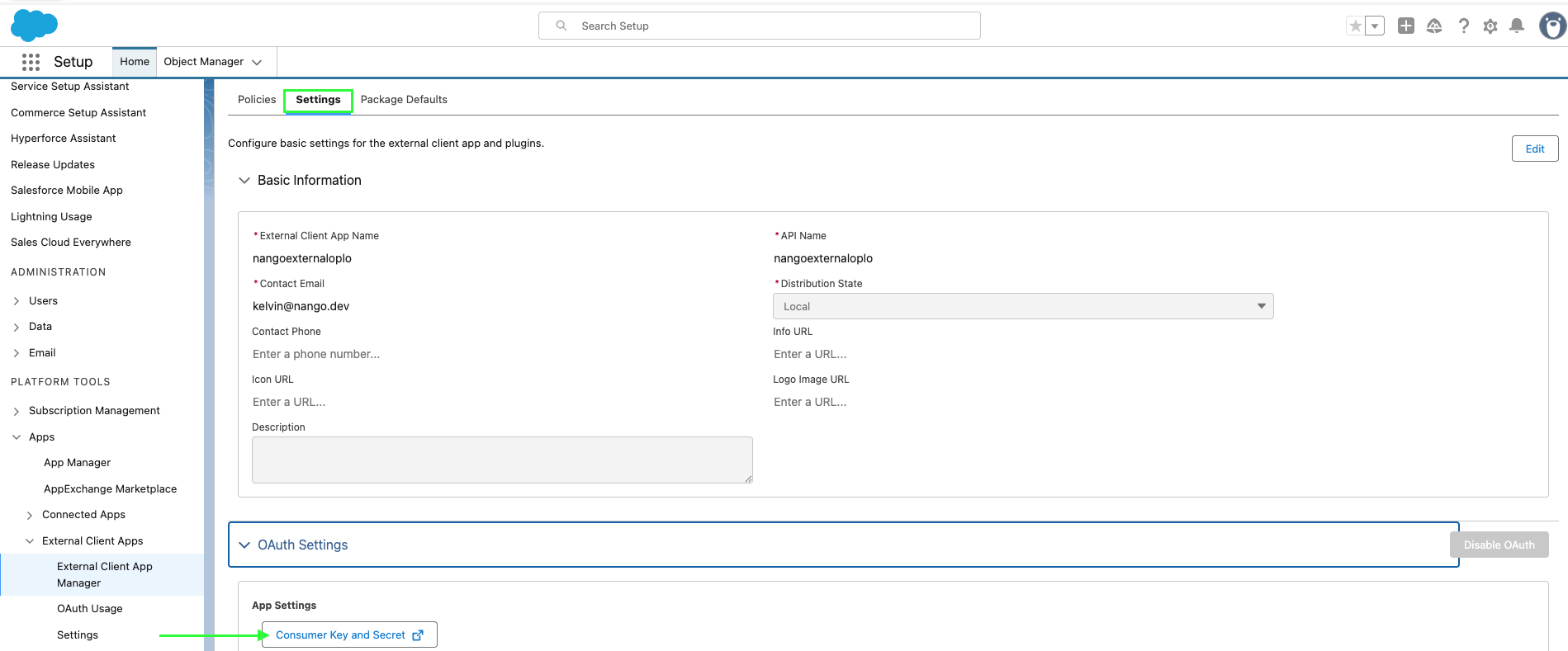
- Copy the Consumer Key (Client ID) and Consumer Secret (Client Secret).

Step 4: Find your Hostname
- Click on your profile to view your hostname.
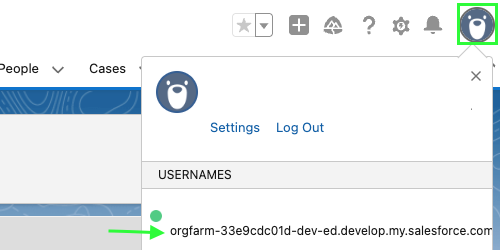
Step 5: Enter credentials in Nango
- In the Nango Connect UI or dashboard, select the Salesforce (Client Credentials) integration.
- Enter your Hostname, Client ID, and Client Secret.
- Click Authorize to establish the connection.