

Overview
To authenticate with Okta using Client Credentials, you need the following:- Client ID - A unique identifier for your Okta API Services application.
- Private Key (JWK) - The RSA private key in JSON Web Key format, whose public key is registered in your Okta application.
- Okta Domain - The subdomain of your Okta organization.
- Scopes - A space-separated list of Okta Management API scopes (e.g.
okta.users.read okta.users.manage).
private_key_jwt authentication.
Prerequisites:
- You must have an Okta account. Sign up for a free developer account at developer.okta.com.
Step 1: Creating your Okta API Services application
- Log in to your Okta Admin Console.
- In the left sidebar, navigate to Applications > Applications.
- Click Create App Integration.
- Select API Services as the sign-in method and click Next.
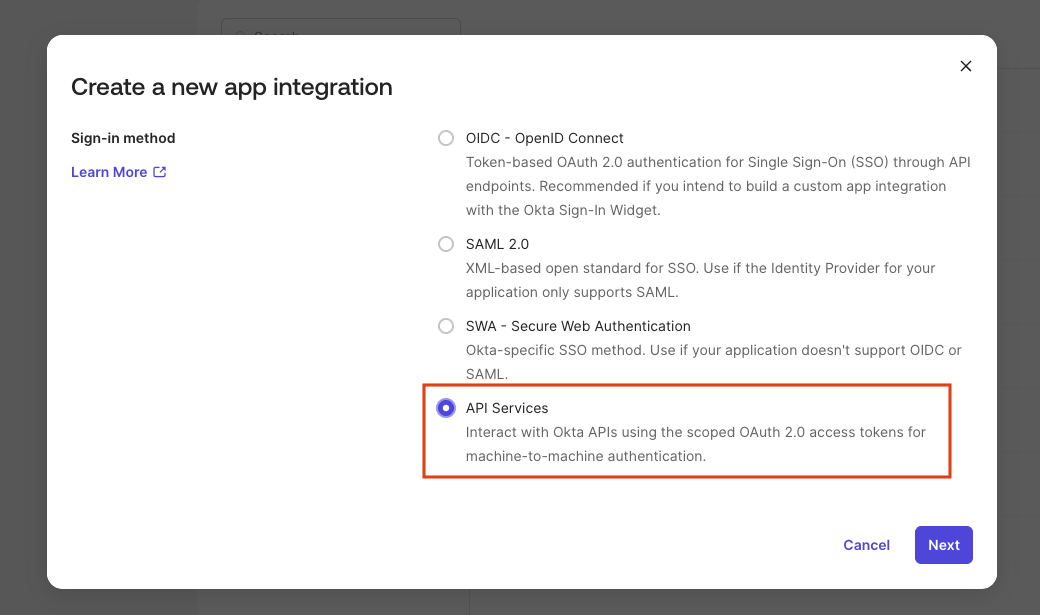
- Give your application a name and click Save.
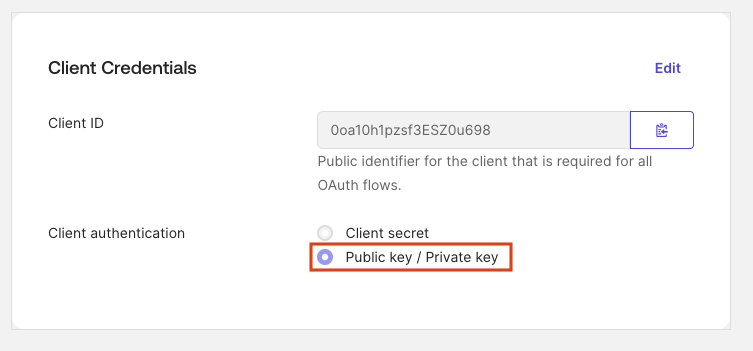
- On the application’s General tab, find your Client ID — you will need it in the final step.
- Set Client authentication to Public key / Private key.
okta.*scopes are only supported with this authentication method.
- Disable Proof of possession (DPoP) — it is not supported by Nango.
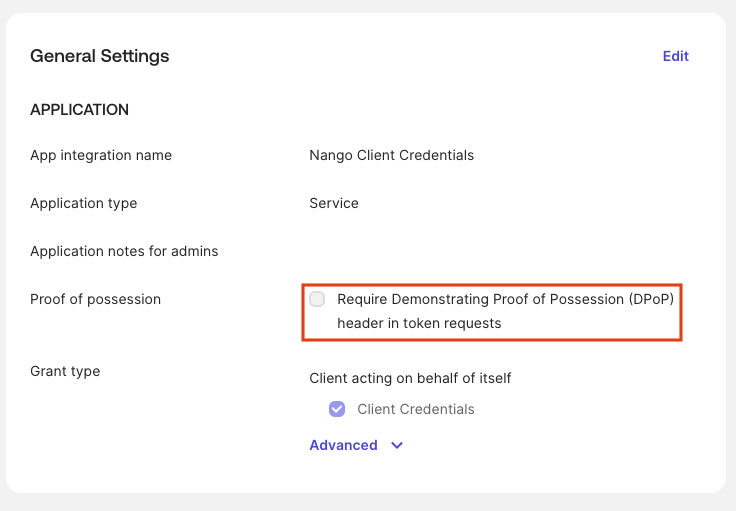
The application must be created as API Services.
Step 2: Generating and registering your RSA key pair
Use Okta key generator
Okta can generate the RSA key pair for you directly in the Admin Console:- In the Admin Console, open your API Services application.
- Go to the General tab and scroll to the PUBLIC KEYS section.
- Click Add Key, then select Generate new key.
- Click Save — Okta generates the key pair and displays the Private Key (JWK) once.
- Copy and save the private key JSON immediately — it will not be shown again.
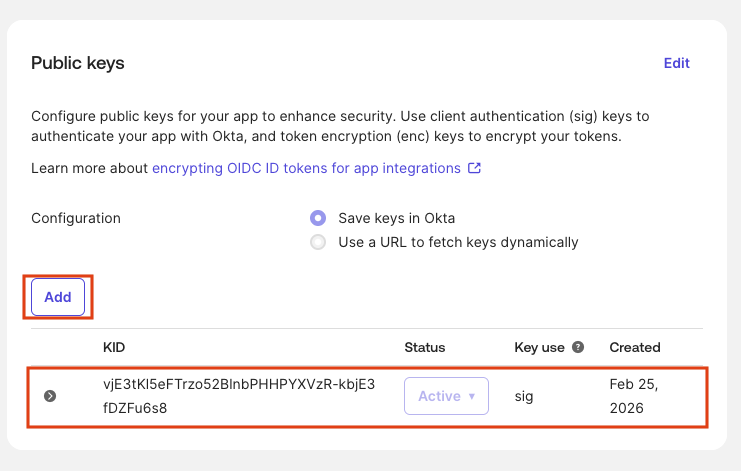
- The public key is automatically registered with your application.
Copy the private JWK before closing the dialog. Paste it into the Private Key field in the Nango Connect UI in the final step.
Create your own key
Okta usesprivate_key_jwt for API Services apps. You generate an RSA key pair, register the public JWK with Okta, and provide the private JWK to Nango.
Generate a private JWK using the following Node.js script (requires Node.js 18+):
- In the Admin Console, open your API Services application.
- Go to the General tab and scroll to the PUBLIC KEYS section.
- Click Add Key, paste the public JWK JSON output from the script above, and click Save.
The private JWK is what you paste into Nango. It includes all key material (
d, p, q, dp, dq, qi) and the kid. Keep it secret.Step 3: Finding your Okta Domain
Your Okta Domain is the subdomain of your Okta organization URL.- In the Admin Console, your browser’s address bar will show a URL like
https://dev-12345678-admin.okta.com. - Your Okta Domain is the part before
.okta.com, ignoring-admin(e.g.,dev-12345678). - Alternatively, go to Settings > Account in the Admin Console to find your Okta domain.
Step 4: Grant API scopes to your application
Okta requires at least one scope in every token request. Before your application can request specific scopes, they must be granted:- In the Admin Console, navigate to Applications > Applications and open your application.
- Click the Okta API Scopes tab.
- Grant the scopes your integration requires (e.g.
okta.users.read,okta.users.manage).
Step 5: Assign an admin role to your application
Granting scopes alone is not enough — Okta Management API endpoints (e.g./api/v1/users) silently return an empty 200 [] response if your application has no admin role. You must assign at least Read-Only Administrator:
- In the Admin Console, navigate to Security > Administrators (or go to Applications > Applications > your app > Admin roles).
- Click Add administrator assignment and select your API Services application.
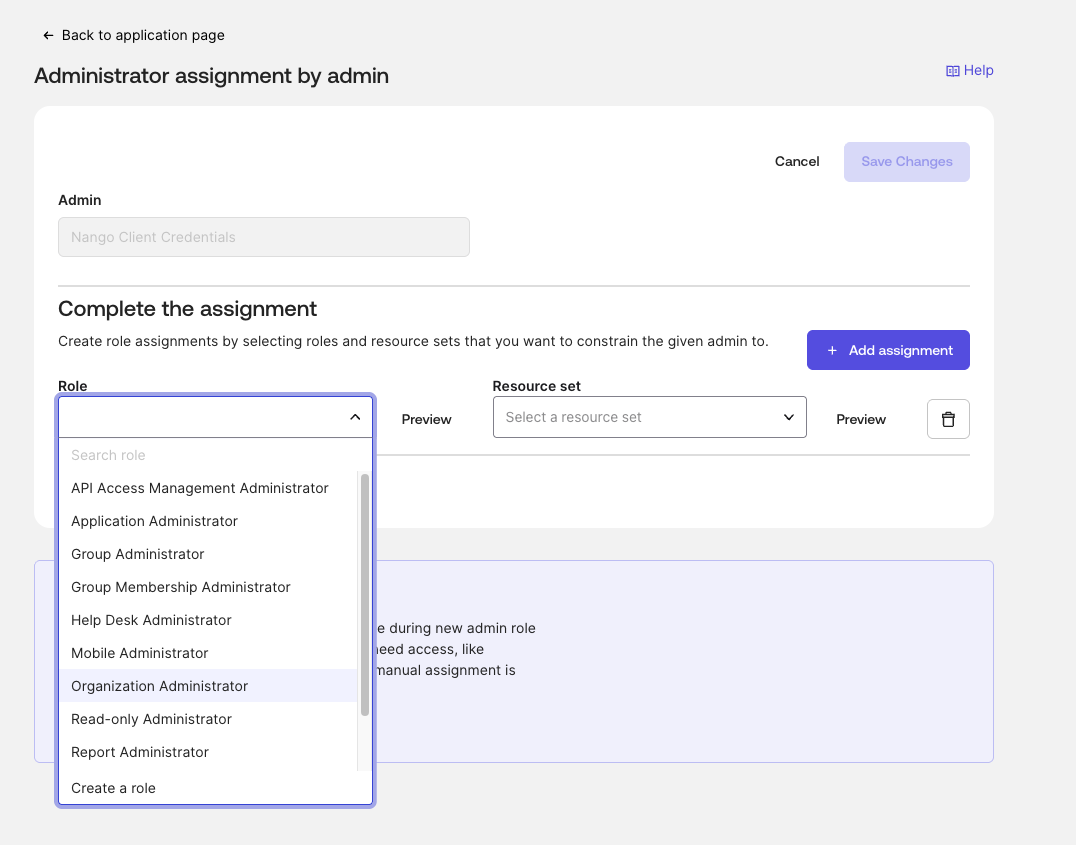
- Assign the Read-Only Administrator role (or higher, depending on the scopes you need).
- Click Save.
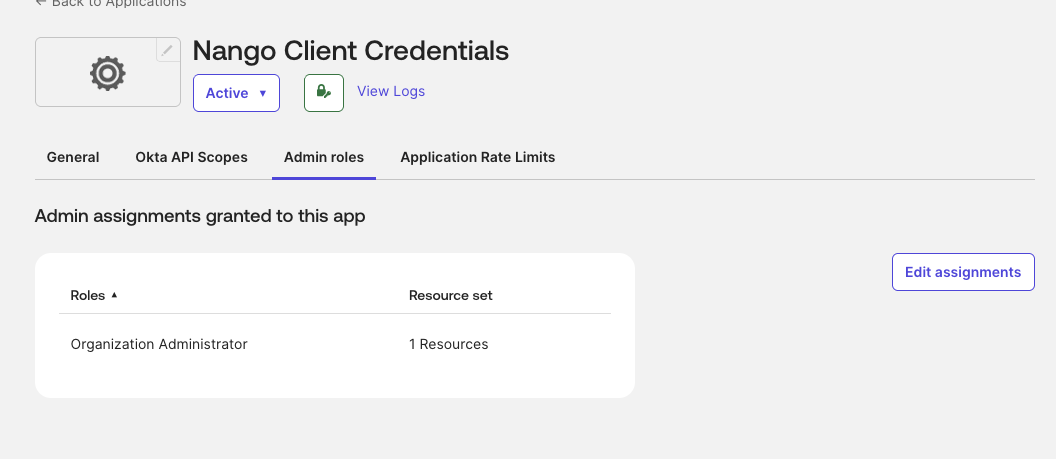
Without an admin role, API calls succeed with
200 OK but return empty results and there is no 403 error to indicate the problem.Step 6: Enter credentials in the Connect UI
Once you have your Client ID, Private Key (JWK), Okta Domain, and Scopes:- Open the form where you need to authenticate with Okta (Client Credentials).
- Enter your Client ID.
- Paste your Private Key (JWK) — the full JSON object from the script above (single-line or formatted).
- Enter your Okta Domain (e.g.,
dev-12345678). - Enter the Scopes as a space-separated list (e.g.,
okta.users.read okta.users.manage). - Submit the form, and you should be successfully authenticated.