Overview

To authenticate with Fellow, you will need:
  1. Workspace Subdomain - The subdomain of your Fellow workspace.
  2. API Key - A key that grants secure access to the API, enabling authorized applications to interact with Fellow resources and services.
This guide will walk you through finding your Workspace Subdomain and generating your API Key within Fellow.

Prerequisites:

  • You must have a Fellow account
  • The Developer API must be enabled for your workspace. If it’s not enabled, navigate to Workspace settings as an admin > Security and toggle the Allow users to access the Developer API option.

Instructions:

Step 1: Finding your Workspace Subdomain

  1. Log in to your Fellow workspace
  2. Once logged in, check the URL in your browser’s address bar
  3. Your workspace subdomain is the part of the URL before .fellow.app. For example, if your workspace URL is https://myworkspace.fellow.app, your subdomain is myworkspace.

Step 2: Generating Your API Key

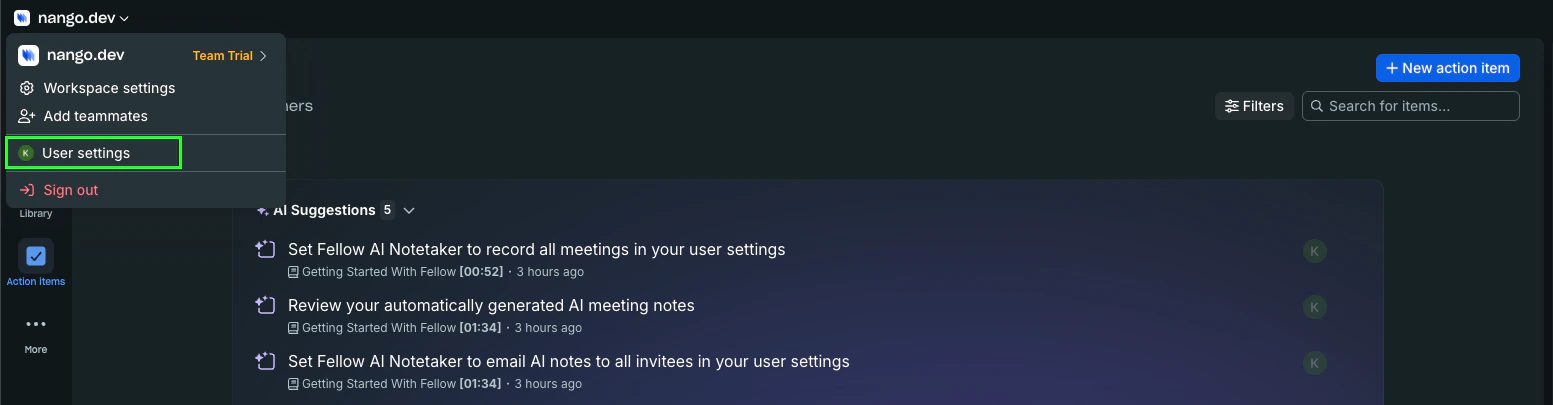
  1. From your profile, click User settings
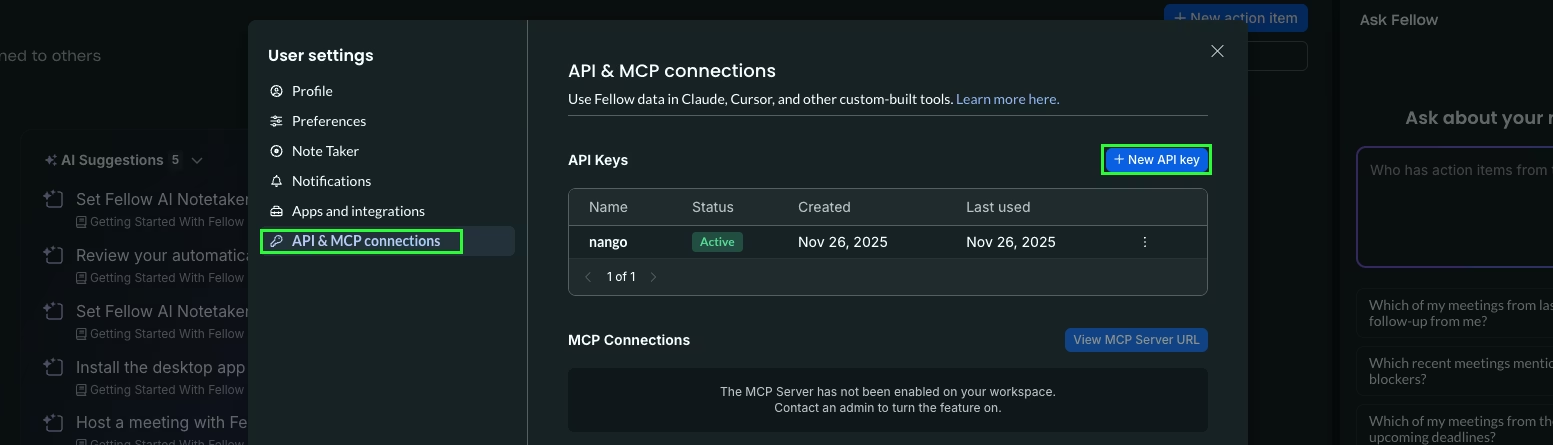
  1. Click API & MCP connections, then click + New API Key
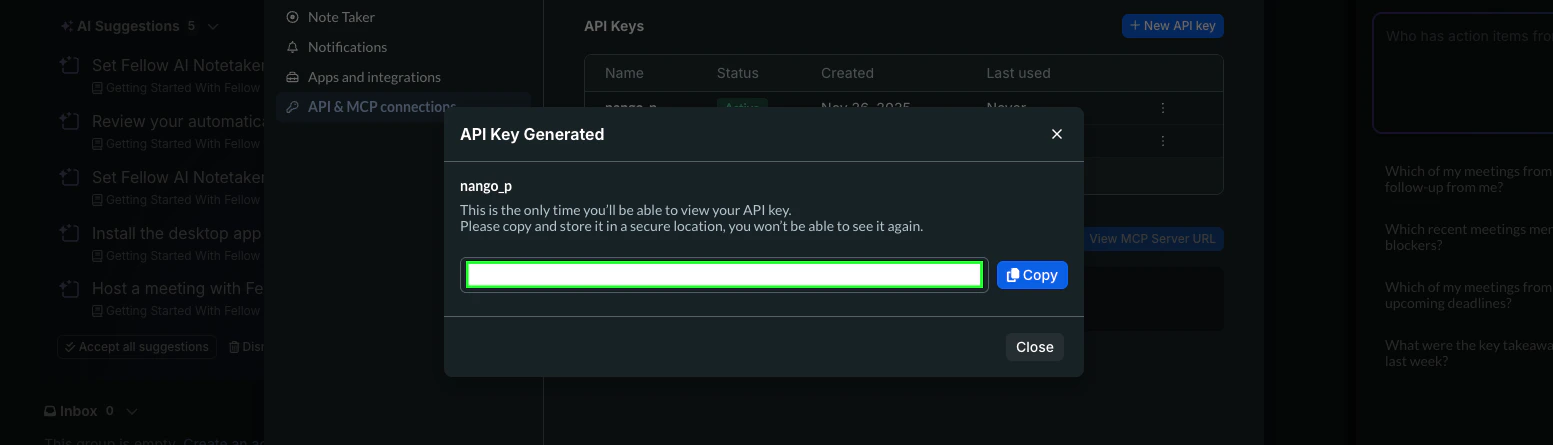
  1. Enter a name for your API Key and click Generate Key
Once your API Key is generated, ensure you copy it to a secure location as it won’t be shown again.

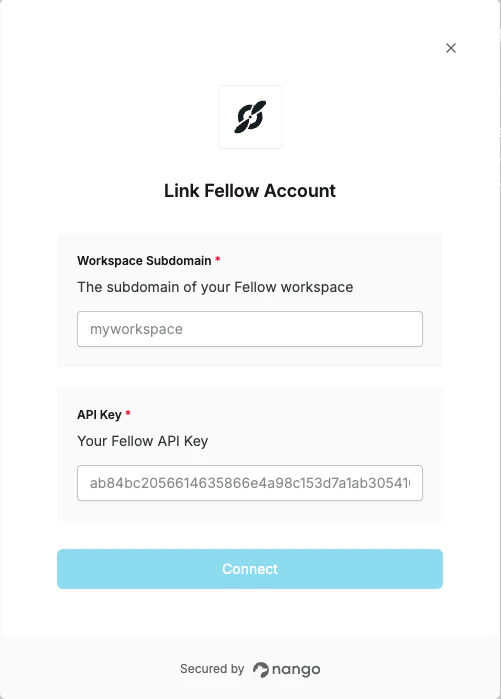
Step 3: Enter credentials in the Connect UI

Once you have your Workspace Subdomain and API Key:
  1. Open the form where you need to authenticate with Fellow.
  2. Enter your Workspace Subdomain and API Key in their respective fields.
  3. Submit the form, and you should be successfully authenticated.
You are now connected to Fellow.